Saturday, 5 November 2016

What are different types of views?Explain the difference.

Q  87. What are different types of views?Explain the difference.


Views are required in order to use Clearcase. A unique view assigned to a user will:
  • allow a developer access to the VOB data (source code storage)
  • provide a workspace are where users can privately modify VOB data without disturbing the view of the VOB data held by other developers. Changes are only accessible by others when a file is checked into the VOB from the users private space.
There are three types of views:

  • Snapshot view: Changes and updates by others are not available to a snapshot view until a new "snapshot" is taken.
  • Web view: accessible from Clearcase Web interface. Similar to a snapshot view.
  • Dynamic view: access to all versions of VOB elements and view private objects as they are checked into the VOB

What is the command to edit config spec?

Q 89. What is the command to edit config spec?
  • ClearCase—Edit the config spec of a dynamic view:
edcs [ –tag view-tag ] [ file ]
  • ClearCase—Edit the config spec of a snapshot view:
edcs [ –ove/rwrite | –ren/ame ] [ –cti/me | –pti/me ] [ file ]
  • ClearCase Remote client—Edit the config spec of a web view:
edcs [ –ove/rwrite | –ren/ame ] [ –pti/me ] [ file ]
  • ClearCase Remote client—Edit the config spec of an automatic view:

edcs [ –ove/rwrite | –ren/ame ] [ file ]

How to set view using script?

Q 90. How to set view using script?
Try using below two ways:
Run cleartool setview prior to calling the script:

Example:

$ cat /tmp/script.sh
#!/bin/sh
/usr/atria/bin/cleartool pwv

$ cleartool setview new_view
[new_view]$ /tmp/script.sh
Working directory view: new_view
Set view: new_view


 Run the cleartool setview command and exec into the script:

Example:

$ cleartool setview -exec /tmp/script.sh new_view
Working directory view: new_view
Set view: new_view

What is difference between $*, $@ , $_and $0?

Q.46 . What is difference between $*, $@ , $_and $0?

$#
The number of arguments supplied to a script.
$*
All the arguments are double quoted. If a script receives two arguments, $* is equivalent to $1 $2. 
The "$*" special parameter takes the entire list as one argument with spaces between
$@
All the arguments are individually double quoted. If a script receives two arguments, $@ is equivalent to $1 $2.
The "$@" special parameter takes the entire list and separates it into separate arguments.
$?
The exit status of the last command executed.
$0
Gives File Name


test.sh
#!/bin/sh
 
echo "File Name: $0"
echo "First Parameter : $1"
echo "Second Parameter : $2"
echo "Quoted Values: $@"
echo "Quoted Values: $*"
echo "Total Number of Parameters : $#"
Here is a sample run for the above script −

$./test.sh Foo Bar
File Name : ./test.sh
First Parameter : Foo
Second Parameter : Bar
Quoted Values: Foo Bar
Total Number of Parameters : 2


$echo $?
0
 

Tuesday, 18 October 2016

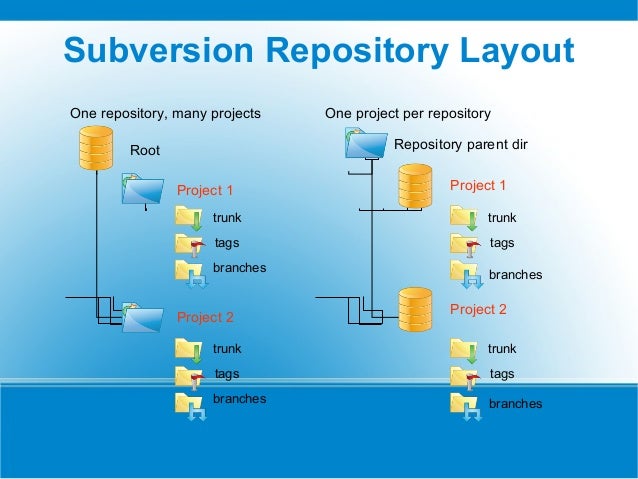
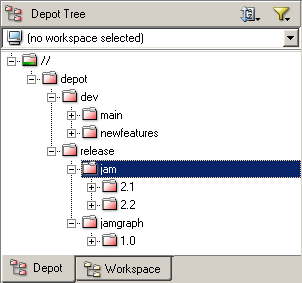
What is the structure of branches in the repo?

SVN
Image result for svn tree structure

Perforce
Image result for perforce tree structure


How to create a branch in SVN?

HTTPS

If you're repo is available via https, you can use this command to branch ...
svn copy https://host.example.com/repos/project/trunk \
       https://host.example.com/repos/project/branches/branch-name \
  -m "Creating a branch of project"

SVN+SSH

Subversion makes it easy (some think too easy) to create a new branch using the svn copy command.
$ svn copy svn+ssh://host.example.com/repos/project/trunk \
           svn+ssh://host.example.com/repos/project/branches/NAME_OF_BRANCH \
      -m "Creating a branch of project"
Tricks and Tips